How To Service Your HID FARGO HDP6600 Card Printer: Expert Tips from ADVANTIDGE
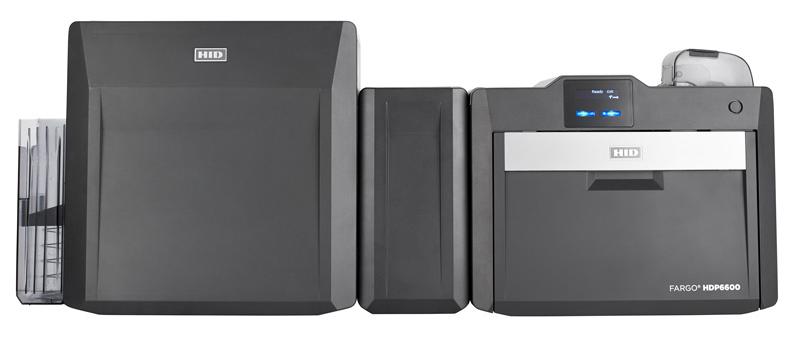
Keeping your HID FARGO HDP6600 card printer in top condition is essential for ensuring high-quality, reliable performance. This guide provides step-by-step self-service support tips for firmware and driver updates, applicable to the HDP6600 and other FARGO card printers, as well as most card printers on the market.
Step 1: Update the Printer Firmware
Firmware updates resolve bugs, enhance compatibility, and may introduce new features, ensuring your printer operates at its best.
1.1 Download the Firmware
- Visit the HID Global Support page.
- Locate and download the latest firmware file for the HDP6600.
1.2 Connect the Printer
- Connect the printer to your computer via USB or network.
- Ensure the printer is powered on.
1.3 Install the Firmware
- Open the Fargo Workbench Utility (available with the driver installation package or via the HID website).
- Select your HDP6600 printer in the dropdown menu.
- Navigate to the Firmware Update tab.
- Browse and select the downloaded firmware file.
- Click Start Update and allow the process to complete uninterrupted.
Important: Avoid turning off the printer during the update.
Step 2: Update Printer Drivers
Driver updates improve communication between your computer and printer, ensuring compatibility and optimal performance.
2.1 Download the Latest Driver
- Visit the HID Global website.
- Download the driver compatible with your operating system.
2.2 Uninstall Existing Drivers (Optional)
- On Windows: Navigate to Control Panel > Programs and Features and uninstall the current HDP6600 driver.
2.3 Install the New Driver
- Run the downloaded driver file.
- Follow on-screen prompts to complete the installation.
- Reboot your computer if necessary.
Step 3: Verify Printer Settings
After updates, ensure your printer settings are optimized for your specific application.
3.1 Access Printer Preferences
- Open Devices and Printers (Windows).
- Right-click on the HDP6600 printer and select Printing Preferences.
3.2 Adjust Printer Settings
- Confirm settings for card size, orientation, ribbon type, and lamination match your requirements.
3.3 Test Print
- Print a test card to verify the updates and confirm proper functionality.
Step 4: Update Related Software (Optional)
If using software like Asure ID, download the latest version to ensure compatibility with your updated firmware and drivers.
Step 5: Perform Routine Maintenance
Regular maintenance keeps your printer in excellent working condition.
Maintenance Tips:
- Use the Fargo Cleaning Kit to clean internal components periodically.
- Inspect and replace consumables, such as ribbons and film, to maintain print quality.
ADVANTIDGE: Your Trusted Partner in Card Printer Support
For over 20 years, ADVANTIDGE has provided industry expertise and full-service support for organizations using security identification solutions. Whether you need warranty support, one-time service tickets, or an annual support plan, our experienced team is here to help keep your card printers up and running.
Reach out to ADVANTIDGE with a support request and let us streamline your operations, ensuring success with custom card printing solutions. With our guidance, you can maintain smooth printer functionality and exceptional print quality.